Google Meet Recorder: Record Your Calls and Get the Transcript
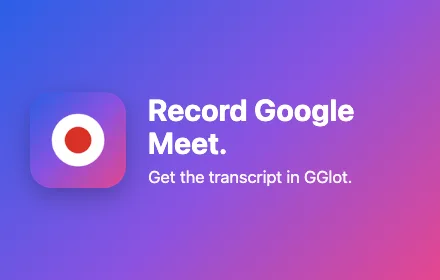
Record any Google Meet with a free Chrome extension. No bot joins your call, and you do not need a Google Workspace plan. After the meeting, the transcript with speaker labels is in your GGlot account, in 100+ languages.
- Free plan: meetings up to 30 min
- No bot in the call
- Chrome 116+ and Edge
- Speaker labels
- +30 free minutes when you connect
How to record a Google Meet with GGlot
Three steps. The first two you do once.
Add the GGlot Meeting Recorder from the Chrome Web Store. Then connect it to your free or paid GGlot account with one click.
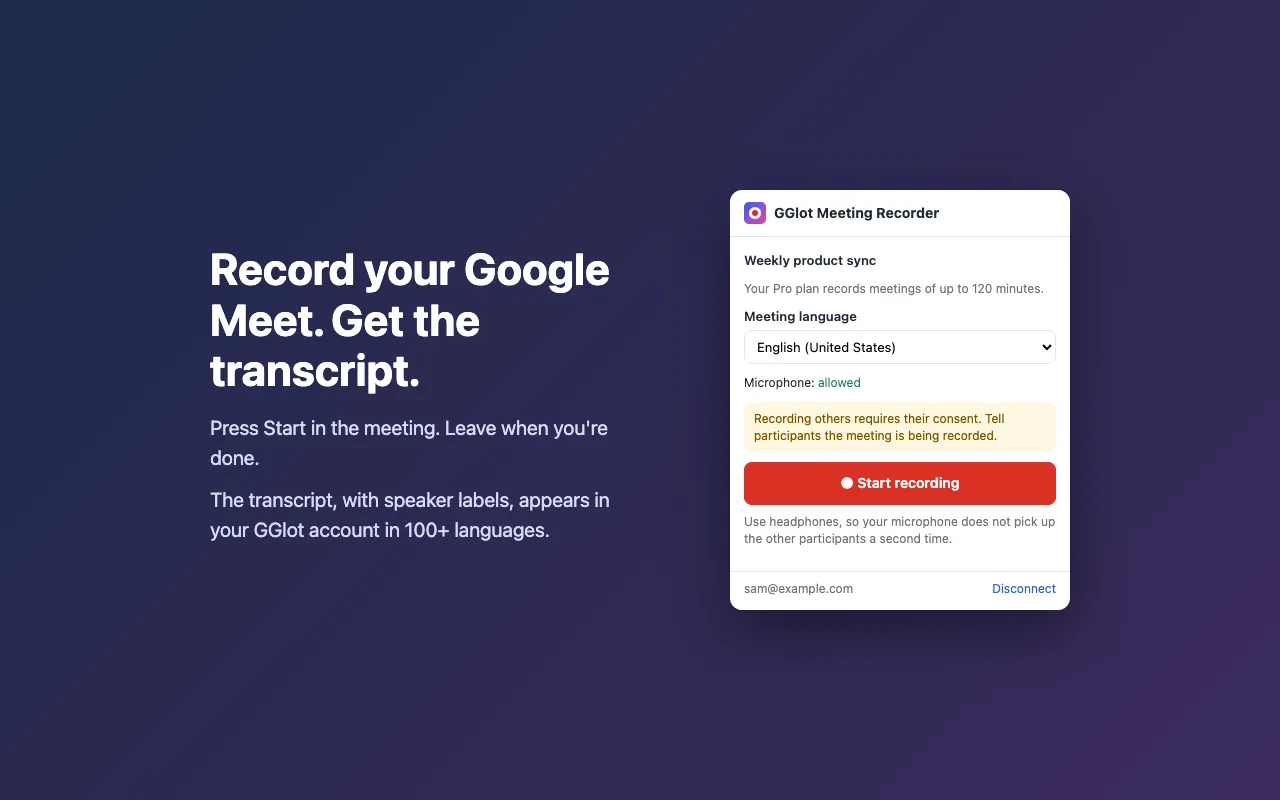
Choose the meeting language and press Start. The recorder records the meeting sound and your microphone, so every voice is in the transcript.
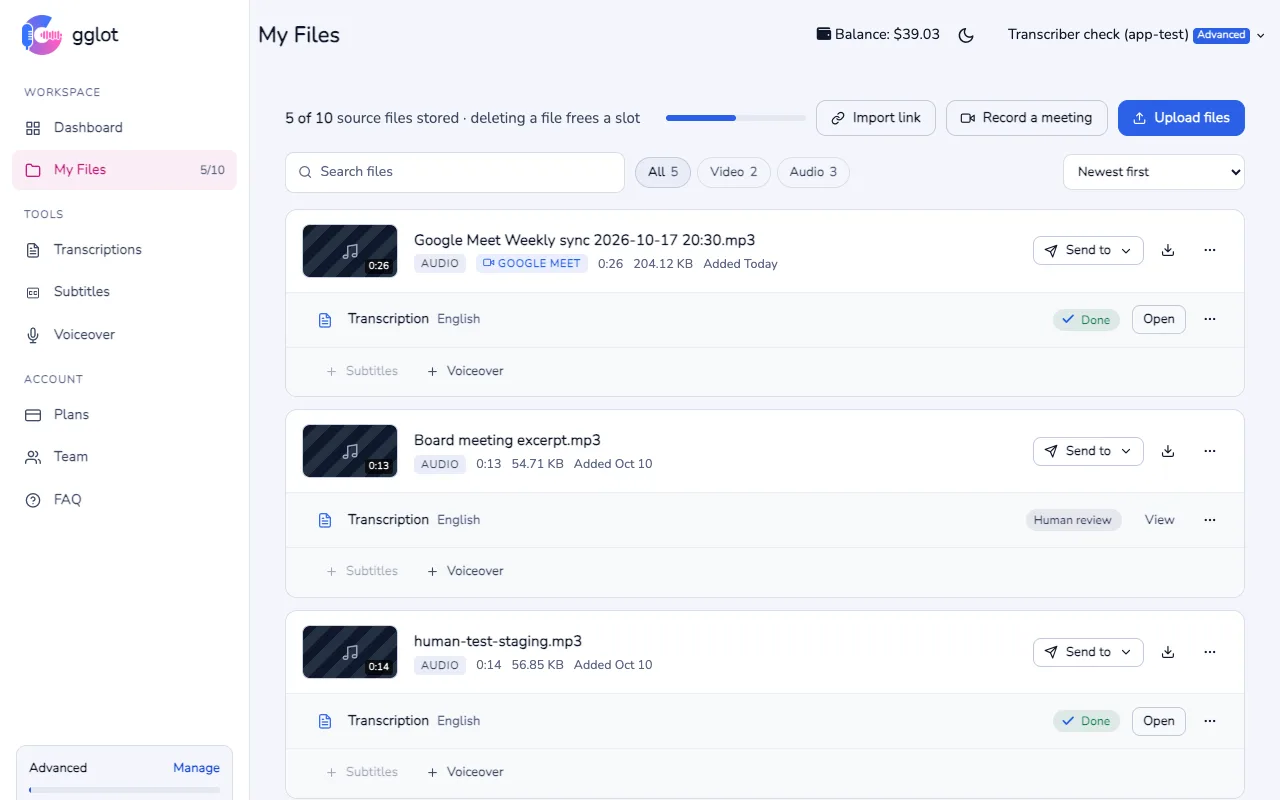
The recording appears in My Files and is transcribed a few minutes later. The transcript is not live; we email you when it is ready.
What you get after the meeting
Every speaker gets a label. Rename them once and the names change everywhere in the transcript.
Choose the meeting language before you start. Many languages are covered by the free minutes.
Correct a word in the online editor, translate the transcript, or export TXT, DOCX, PDF and subtitles (SRT, VTT).
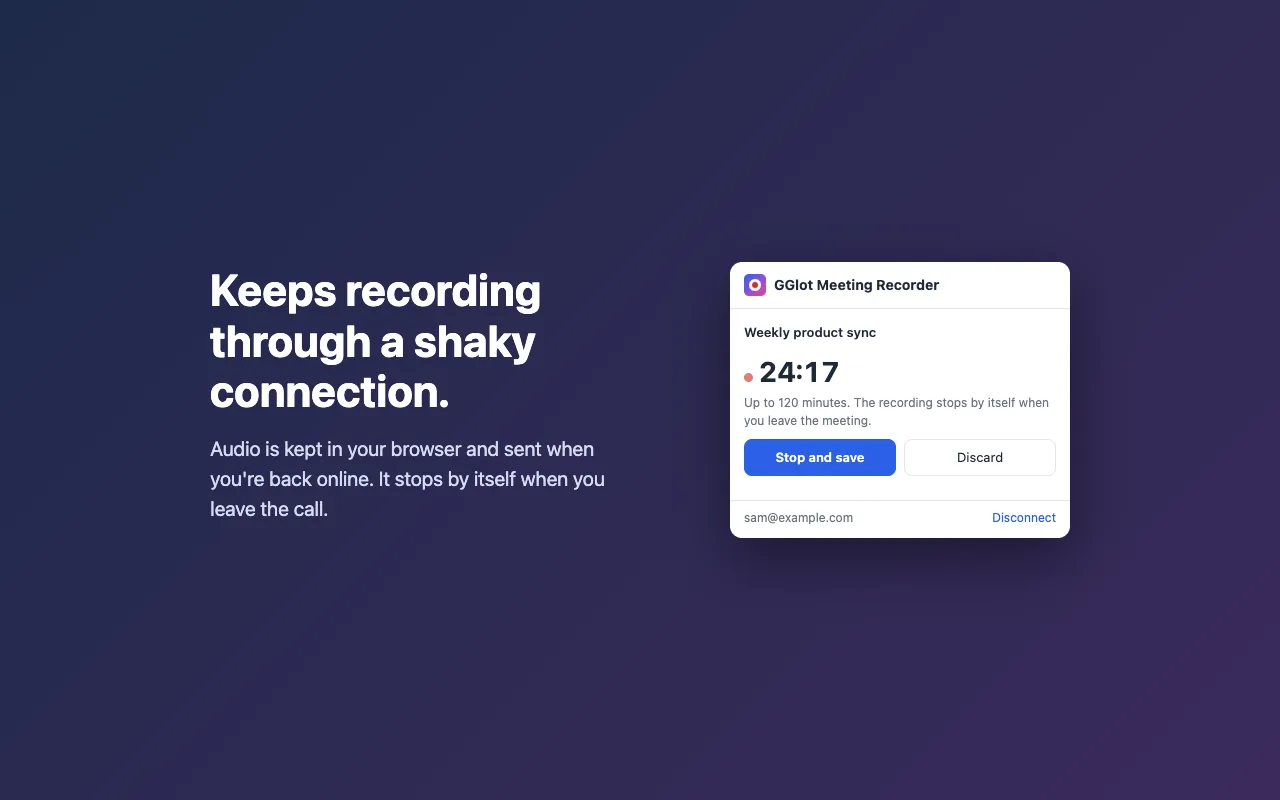
If the internet drops for a moment, the audio is kept in your browser and sent when you are back online.
Record Google Meet without Google Workspace
The record button inside Google Meet needs a paid plan: most Google Workspace editions (such as Business Standard or Business Plus), or a Google One plan with 2 TB of storage or more. In a Workspace organization, an administrator must also turn recording on. With a free Gmail account you cannot use it.
The GGlot Meeting Recorder works in any meeting you are in, on any Google account. It records the meeting tab and your microphone in your own browser. It does not add a participant to the call.
Free and paid plans for Google Meet recording
| Plan | Longest recording | Transcription minutes a month | Files kept in My Files | Price |
|---|---|---|---|---|
| Free | 30 min | 30 free | 1 | Free |
| Storage | 60 min | 150 | 3 | $14.99 a month |
| Pro | 120 min | 550 | 5 | $49.99 a month |
| Advanced | 240 min | 1,900 | 10 | $149 a month |
Meetings are transcribed from your plan’s minutes. Paid plans can pay for extra minutes from the balance. Connect the extension for the first time and get 30 extra free minutes. See all plan details.
Recording consent and privacy
Tell people you are recording. Google Meet does not show a notice for this extension. Recording other people may require their consent, so tell all participants at the start of the meeting.
The recording starts only when you press Start, and the audio goes only to your GGlot account. Read the extension privacy policy.
Google Meet recording FAQ
Can you record a Google Meet without Google Workspace?
Yes. The record button inside Google Meet needs a paid plan: most Google Workspace editions (such as Business Standard), or a Google One plan with 2 TB of storage or more. The GGlot Meeting Recorder works without it: it records the meeting tab and your microphone in your own browser, on any Google account.
Does the GGlot recorder join the meeting as a bot?
No. Nothing joins the call and the participant list does not change. The extension records the Google Meet tab you have open.
Is the Google Meet recorder free?
Yes. The extension is free. On the free plan each recording can be up to 30 minutes and is transcribed with your 30 free minutes a month. When you connect the extension for the first time, you get 30 extra free minutes. Paid plans record meetings of up to 60, 120 or 240 minutes.
Which languages can the transcript be in?
More than 100 languages and dialects. Choose the meeting language in the extension before you press Start.
Does it work in Microsoft Edge?
Yes. Open the Chrome Web Store in Edge and add the extension; Edge accepts Chrome extensions. You need Chrome or Edge version 116 or newer on a computer.
Are other participants notified that I am recording?
No. Google Meet does not show a notice for this extension. Recording other people may require their consent, so tell everyone at the start of the meeting.
Is the transcript live during the meeting?
No. The transcript is ready a few minutes after you press Stop or leave the meeting. We email you when it is ready.
Where does the recording go, and who can see it?
The recording and the transcript are saved in My Files in your GGlot account. Only you, and the team members you share with, can open them. You can delete them at any time.
Record your next Google Meet
Free Chrome extension. Transcript with speaker labels in 100+ languages.