Transcribe Video to Text

Drop a file below and get an editable transcript in minutes: 100+ languages, 30 free minutes every month, no card needed.

Upload your video

7-day free trial

MP4, MOV, AVI, MKV, WMV, WEBM and more · up to 2GB

Your file stays on your device — nothing is uploaded until you sign in.

  • 100+languages & dialects
  • 2GBmax file size
  • AI or humantranscription tiers
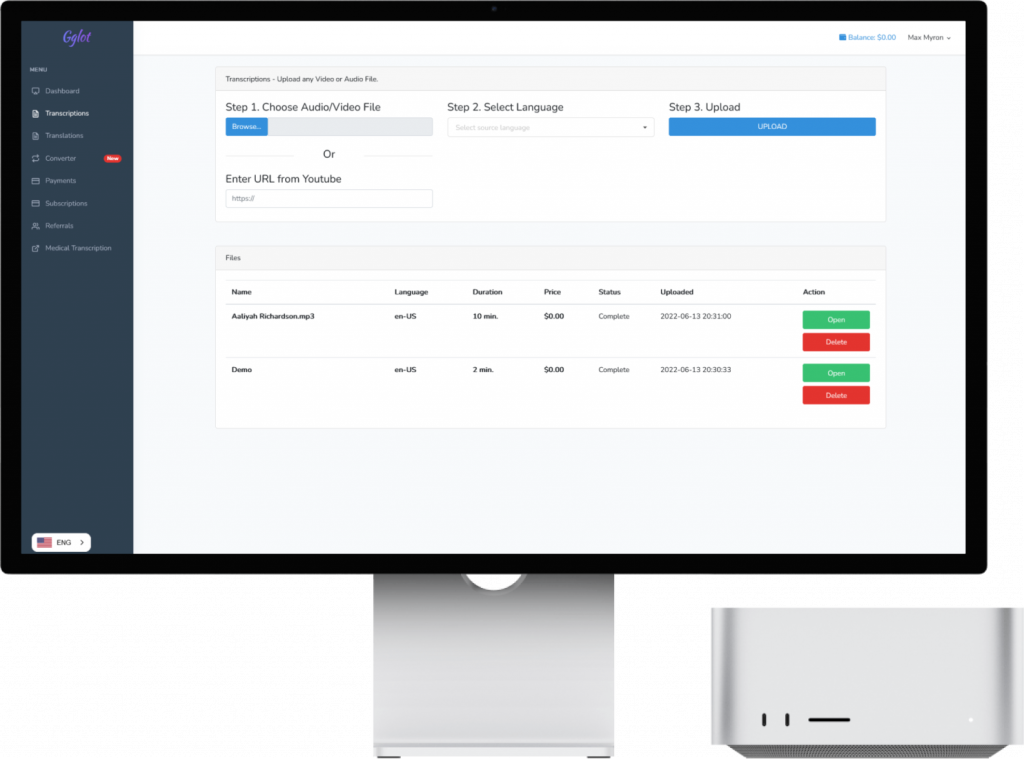
A Mac Studio and Studio Display showing the Gglot transcription service dashboard.

Transcribe video to text free

  • 30 free minutes every month
  • 100+ languages
  • Export TXT, DOCX, SRT, VTT
  • No card needed

Next you create your free account in one click with Google or email, then upload the file from your dashboard.

How to transcribe video to text in 3 steps

  1. UploadDrop an audio or video file, or paste a YouTube link. 15 formats, up to 2 GB.
  2. Let the AI workPick the spoken language. GGlot writes the transcript with timestamps and speaker labels, usually within minutes.
  3. Edit and downloadFix any word in the online editor, then download TXT, DOCX, PDF, SRT or VTT, or translate it into another language.

Supported formats

Audio: MP3, WAV, M4A, AAC, FLAC, OGG, WMA
Video: MP4, MOV, AVI, MKV, WEBM, WMV, FLV, M4V

What you get

  • A transcript with timestamps and speaker labels
  • Subtitles you can edit, burn into the video or export
  • Translation into 100+ languages
  • An AI summary and AI voice-over on the paid plans

Transcribe video to text, or paste a YouTube link

Upload an MP4, MOV, MKV or any of 15 formats, or paste a YouTube link, and GGlot writes a time-stamped transcript of everything said in the video, with each speaker labelled.

From the transcript you can make subtitles, translate them into 100+ languages, burn them into the video, or export SRT and VTT for YouTube, Vimeo and video editors.

Zoom, Teams and Meet recordings work the same way. For Google Meet there is also a free Chrome extension that records the call and sends it to your account for transcription.

What people use it for

  • Zoom and Teams recordings
  • YouTube videos and channels
  • Online courses and tutorials
  • Video interviews and documentaries
  • Marketing and product videos

How GGlot compares

GGlotOtter.aiTurboScribeHappy Scribe
Free plan30 minutes every month, files up to 60 minutes300 meeting minutes a month, but only 3 file uploads in total3 files a day, up to 30 minutes each10 free minutes on the Free plan
Lowest paid plan$14.99 a month for 150 minutes (Storage)$16.99 a month per user (Pro), $8.49 billed yearly: 1,200 minutes, 10 file uploads a month$10 a month billed yearly ($120): unlimited transcription for one person$17 a month for 120 minutes (Basic), $8.50 a month billed yearly
AI dubbingYes, AI voice-over and dubbing in 60+ languages (paid plans)Not stated on their pricing pageNot stated on their pricing pageNot on the pricing page
Full comparisonGGlot vs Otter.aiGGlot vs TurboScribeGGlot vs Happy Scribe

Competitor plans as published on their pricing pages on 6 November 2026. Prices change; check before you buy.

Transcribe

Transcribe Video to Text Automatically

Gglot lets you transcribe video to text online in minutes, with no software to install. Upload a file in MP4, MOV, AVI, MKV or another common format and our AI turns the speech into accurate, time-stamped text you can edit, search and export.

Whether you need to transcribe video from a lecture, an interview, a meeting recording or a podcast episode, the steps are the same: upload the file, choose the language spoken in it, and download your transcript.

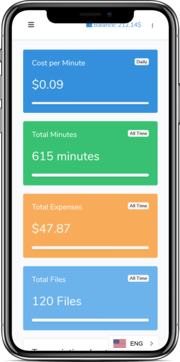
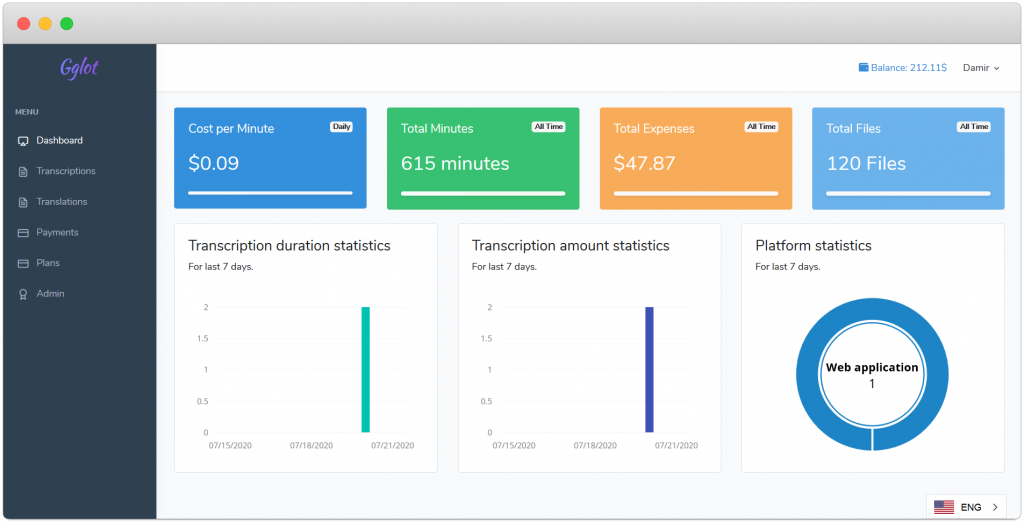
Gglot transcription dashboard

From upload to download

  1. Upload your video. Drag in an MP4, MOV, MKV or WMV file, or paste a link, then choose the language spoken in the recording.

  2. Let Gglot transcribe the video. Our AI converts speech to text in a few minutes, adding timestamps and speaker labels automatically.

  3. Review, edit and export. Proofread the transcript in the online editor, make any adjustments, then export as TXT, DOCX, SRT or VTT.

That is it — your video is transcribed and ready to use.

Why transcribe video with GGlot

MP3 to Text

Video transcripts are searchable: when you transcribe video content, the text becomes searchable — which means search engines can index it and readers can actually find it.

People are likely to come across a transcribed video while browsing for the topics it covers, because search engines pick up the keywords in the transcript. A video recording on its own is not searchable; a transcript very much is.

Can be used as blog content: if you are not sure what to publish next, a transcript can be edited into a new blog post with almost no extra work.

You can also use Gglot to transcribe video into newsletter content for subscribers, or into several short articles in a fraction of the time.

Given the range of benefits, taking a few minutes to transcribe video to text is well worth it. It saves both time and money.

The Benefits of Searchable Video Transcripts

  1. Boost Website Traffic with Searchable Transcripts: Transcribing your videos can significantly increase traffic to your website, as the text becomes searchable for readers. When people browse the web for content related to your topics, they are more likely to discover your transcribed episodes. Search engines will index keywords from the transcripts, making them easily discoverable, unlike non-searchable video recordings.

  2. Repurpose Transcripts as Blog Content: If you are unsure about what to include in your blog, simply convert your video transcripts into text and repurpose them as new blog posts. This requires minimal effort and allows you to maintain a consistent stream of content on your website.

  3. Create Newsletters and Articles with Ease: By using Gglot to transcribe video to text, you can efficiently generate newsletter content for your subscribers or craft multiple short articles in a short time span.

  4. Save Time and Money with Gglot: Given the multitude of benefits, using Gglot to transcribe video to text is a smart choice that can save you both time and money. By streamlining your content creation process, you can focus on expanding your online presence and engaging with your audience more effectively.

  5. Enhance Content Accessibility: Transcribing your files also improves the accessibility of your content for a broader audience. People with hearing impairments, non-native speakers, or those who prefer reading over listening can now access and enjoy your videos in text format.

  6. Improve User Engagement and Retention: Text transcripts complement your audio content, allowing users to follow along while listening or quickly refer back to specific sections. This can lead to increased engagement and better content retention among your audience.

  7. Simplify Content Repurposing: Having your files transcribed opens up numerous possibilities for repurposing your content across various platforms, such as social media, eBooks, and more. This helps you extend the reach of your brand and maximize the value of your content.

And that’s all! In a matter of minutes you’ll have your completed transcript in hand. Once your file is transcribed, you will be able to access it through your dashboard and edit it using our online editor.

Try Gglot for free

No credit cards. No downloads. No evil tricks.

Frequently asked questions

How do I convert video to text?

Drop the file on this page, create your free account (Google sign-in works) and upload it from your dashboard. Choose the spoken language and GGlot writes the transcript, usually within minutes.

Is it free?

Every account gets 30 free minutes of transcription and subtitles each month, no card needed. One free file can be up to 60 minutes long.

Which file formats can I upload?

MP3, WAV, M4A, AAC, FLAC, OGG, WMA, MP4, MOV, AVI, MKV, WEBM, WMV, FLV and M4V, up to 2 GB per file. You can also paste a YouTube link.

Which languages does it support?

GGlot recognises speech in 100+ languages and dialects, and can translate the result into 100+ languages.

What can I download?

TXT, DOCX and PDF for the transcript, SRT and VTT for subtitles, or a video with the subtitles burned in. Speaker labels and timestamps are included.