AI Subtitle Generator

Drop a video below and get timed subtitles in minutes: 100+ languages, 30 free minutes every month, no card needed.

gglot

Generate subtitles free

  • 30 free minutes every month
  • 100+ languages
  • Export TXT, DOCX, SRT, VTT
  • No card needed

Next you create your free account in one click with Google or email, then upload the file from your dashboard.

How to generate subtitles in 3 steps

  1. UploadDrop an audio or video file, or paste a YouTube link. 15 formats, up to 2 GB.
  2. Let the AI workPick the spoken language. GGlot writes the transcript with timestamps and speaker labels, usually within minutes.
  3. Edit and downloadFix any word in the online editor, then download TXT, DOCX, PDF, SRT or VTT, or translate it into another language.

Supported formats

Audio: MP3, WAV, M4A, AAC, FLAC, OGG, WMA
Video: MP4, MOV, AVI, MKV, WEBM, WMV, FLV, M4V

What you get

  • A transcript with timestamps and speaker labels
  • Subtitles you can edit, burn into the video or export
  • Translation into 100+ languages
  • An AI summary and AI voice-over on the paid plans

Auto subtitles for any video, in 100+ languages

GGlot listens to the video, writes the words and splits them into timed subtitle lines that follow the speech. In the editor you can fix a word or change a line before you export.

Download the subtitles as SRT or VTT to upload to YouTube, Vimeo, Facebook or a video editor, or download the video with the subtitles burned in, ready for platforms that do not take subtitle files.

Need the subtitles in another language? Translate them into 100+ languages in the same editor, and on the paid plans add an AI voice-over in 60+ languages.

What people use it for

  • YouTube videos and Shorts
  • Instagram Reels and TikTok videos
  • Course and training videos
  • Films, trailers and festival submissions
  • Accessibility for deaf and hard-of-hearing viewers

How GGlot compares

GGlotOtter.aiTurboScribeHappy Scribe
Free plan30 minutes every month, files up to 60 minutes300 meeting minutes a month, but only 3 file uploads in total3 files a day, up to 30 minutes each10 free minutes on the Free plan
Lowest paid plan$14.99 a month for 150 minutes (Storage)$16.99 a month per user (Pro), $8.49 billed yearly: 1,200 minutes, 10 file uploads a month$10 a month billed yearly ($120): unlimited transcription for one person$17 a month for 120 minutes (Basic), $8.50 a month billed yearly
AI dubbingYes, AI voice-over and dubbing in 60+ languages (paid plans)Not stated on their pricing pageNot stated on their pricing pageNot on the pricing page
Full comparisonGGlot vs Otter.aiGGlot vs TurboScribeGGlot vs Happy Scribe

Competitor plans as published on their pricing pages on 6 November 2026. Prices change; check before you buy.

Trusted By:

Google
logo youtube
logo amazon
logo facebook

Generate subtitles automatically in 100+ languages

Transcribe your interviews

Gglot’s Automatic Subtitle Generator is an innovative solution designed to simplify the process of creating subtitles for your audio and video content. Powered by advanced AI technology, our platform generates precise and synchronized subtitles, making your content more accessible, engaging, and shareable for a global audience.

With Gglot’s automatic subtitle generator, you can easily upload your video file and receive a high-quality subtitle file in just a few minutes. Our advanced algorithms analyze the audio in your video and automatically generate subtitles that match the spoken words as closely as possible.

So you've finished your masterwork video. Now what?​

Congratulations, you’ve finished creating your masterwork video! But before you publish it, there’s one more step you should consider: adding subtitles. Subtitles can improve your video’s viewer retention and comprehension, making it more accessible to a wider audience. However, manually creating subtitles can be a time-consuming and challenging task, especially if you have a lot of videos to subtitle.

That’s where Gglot comes in – our powerful platform makes it easy to add subtitles to your videos quickly and accurately. With our automatic subtitle generator, you can easily upload your video file and receive a high-quality subtitle file in just a few minutes. Our advanced algorithms analyze the audio in your video and automatically generate subtitles that match the spoken words as closely as possible.

Once you have your subtitles, you can easily edit and refine them using our online editor. With our editor, you can adjust the timing, correct any errors, and add punctuation and other formatting to ensure that your subtitles are accurate and professional.

Adding subtitles to your video can improve its accessibility and make it easier for people to understand and engage with your content. Plus, by adding subtitles, you can also improve your video’s SEO and make it easier for people to find and share your content.

With Gglot’s automatic subtitle generator, it’s never been easier or more convenient to add subtitles to your videos quickly and accurately. Try it out today and take your videos to the next level!

Marketing Voiceover results
Text-to-Speech Voiceover example

Upload Your File

Uploading your audio or video file to Gglot is easy and straightforward. Our platform supports any audio and video files, including popular formats like MP3, MP4, and WAV. To get started, simply upload your file to our website and wait for it to finish. Our advanced algorithms will transcribe your file quickly and accurately, giving you the peace of mind that you need to work efficiently.

Once your file has been transcribed, you can easily download the transcription in various formats, including simple text files like TXT or more sophisticated formats like SSA and VTT that contain metadata. We recommend exporting your transcriptions in these formats so that you can work with them more easily and share them with others.

At Gglot, we’re committed to providing you with a seamless and hassle-free transcription experience. That’s why our platform is designed to be user-friendly and easy to navigate, making it easy for you to upload your files and receive accurate transcriptions in just a few minutes.

Uploading your audio or video file to Gglot is the first step towards getting high-quality transcriptions quickly and efficiently. With our support for a wide variety of file formats and our easy-to-use platform, you can get the transcriptions you need in the format that’s best for you.(It’s recommended to export to .ssa, .vtt or other files that contain metadata.) Try it out today and see the difference for yourself!

blok

Edit Your Video

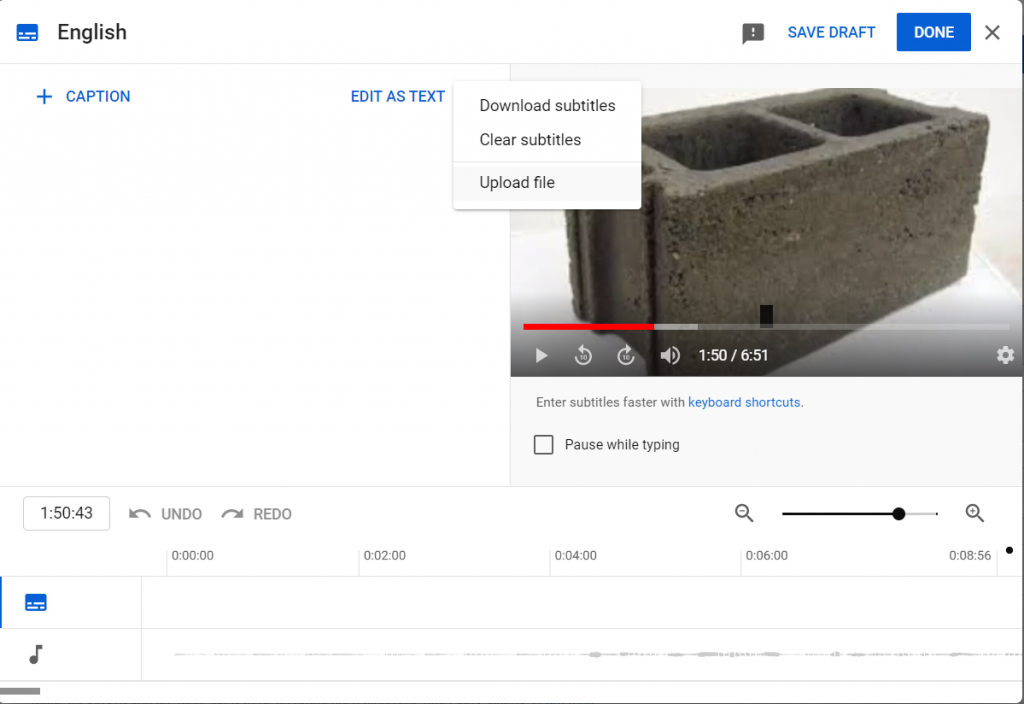
Go to your video hosting site (Youtube, Vimeo, etc.) and access their editor. You should see an option to upload subtitles- and that’s where your Ggloted transcript comes into use.

Once you have your transcript from Gglot, it’s easy to add subtitles to your video using your video hosting site’s editor. For example, if you’re using YouTube or Vimeo, simply access their editor and look for the option to upload subtitles. From there, you can easily upload your Ggloted transcript and synchronize it with your video.

Adding subtitles to your video not only improves its accessibility and comprehension but also makes it more engaging and professional. By providing subtitles, you’re giving your viewers an extra layer of information and enhancing their viewing experience.

With Gglot, adding subtitles to your video has never been easier or more convenient. Our platform makes it easy to transcribe your audio or video files quickly and accurately, giving you the transcripts you need to create high-quality subtitles. Plus, with our support for a wide variety of import and export options, you can work with your transcriptions in the format that’s best for you, making it easy to share and collaborate with others.

Try it out today and take your videos to the next level!

Watch the Subtitles get Auto-completed!

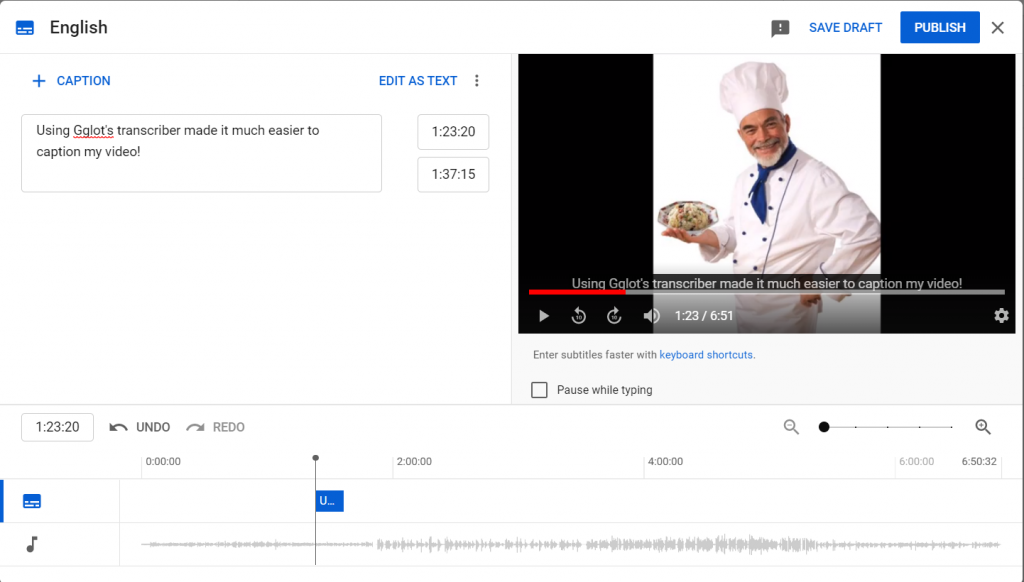
Your timestamped transcript will integrate with your video host’s software, creating the perfect set of subtitles for your perfect video!

With Gglot, you can easily generate high-quality subtitles for your videos and integrate them seamlessly with your video hosting site’s software. Once you have your timestamped transcript, simply upload it to your video hosting site and watch as the subtitles get auto-completed, creating the perfect set of subtitles for your perfect video.

Our advanced algorithms ensure that your transcriptions are accurate and complete, giving you the peace of mind that you need to create professional subtitles that match your video perfectly. Plus, with our support for a wide variety of import and export options, you can work with your transcriptions in the format that’s best for you, making it easy to share and collaborate with others.

YoutubeCaptionEditor
howIt 1

From upload to download

With Gglot, you can transcribe your audio files quickly and easily, without sacrificing accuracy or quality. So what are you waiting for? Give it a try today!

  1. Upload your audio file and select the language used in the audio.

  2. Sit back and relax while our advanced algorithms convert the audio to text in just a few minutes.

  3. Proofread and Export: Once the transcription is complete, take a few moments to review the text for accuracy and make any necessary edits. Then, add some final touches, click on export, and you’re done!

You have successfully converted your audio into a text file that you can use for any purpose. It’s that simple!


Why generate subtitles with GGlot

Gglot for Podcasters

Search engines rely on keywords to help users find the content they’re looking for, but audio alone can be difficult to search. By transcribing your podcasts with Gglot, you can make your discussions and memorable quotes searchable, helping more people find your site and boosting your visibility. With Gglot, you can easily transcribe your podcasts and improve your SEO, making it easier for listeners to find and enjoy your content.

Gglot for Editors

Captions are an important way to improve the comprehension and accessibility of your content. With Gglot, you can easily upload your audio files in MP3 or other formats and use our editor to create accurate captions that improve convenience for you and your viewers. Whether you’re a video editor or content creator, Gglot’s editor can help you streamline your subtitling process and create high-quality captions for your videos.

Gglot for Writers

As a journalist, office worker, or content creator, interviews are a valuable tool for creating engaging reports and content. With Gglot, you can transcribe interviews quickly and accurately, allowing you to spend less time on transcription and more time on analysis. Use our online editor to rectify or remove unnecessary stutters and create a polished transcript in minutes. With Gglot, you can get accurate transcriptions and save valuable time in your writing process.

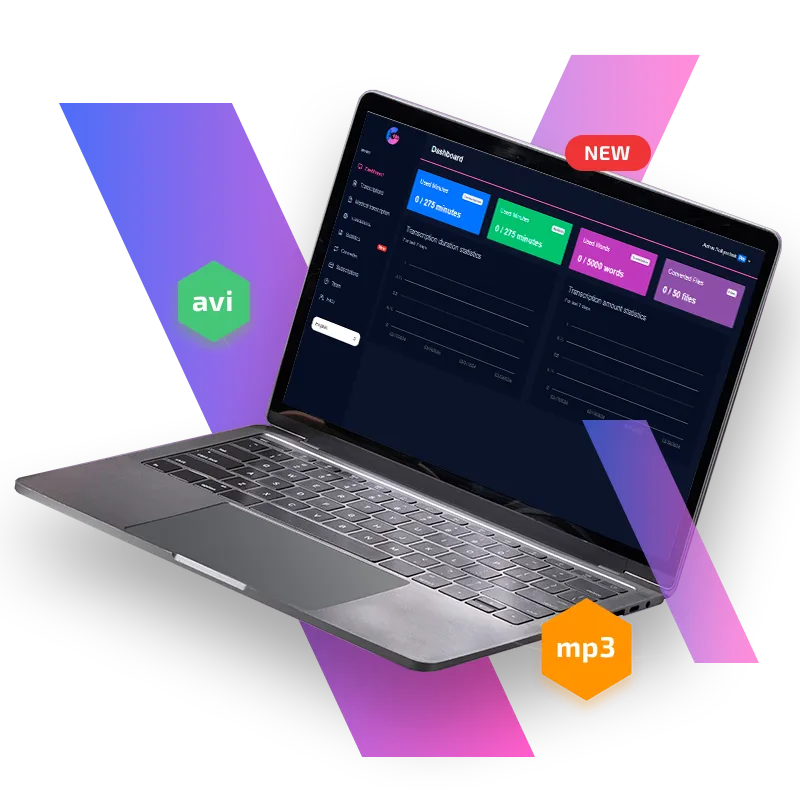
That’s all, in a matter of minutes you’ll have your interview transcript on hands. Once your file is transcribed, you will be able to access it through your dashboard. You can edit it using our Online Editor.

Generate your first subtitles free

Still contemplating?

Take the leap with GGLOT and experience the difference in your content’s reach and engagement. Register now for our service and elevate your media to new heights!

Our partners

Frequently asked questions

How do I generate subtitles for a video?

Drop the video on this page or paste a YouTube link after you sign in. GGlot transcribes the speech, splits it into timed subtitles, and lets you edit every line before you download an SRT or VTT file or a video with the subtitles burned in.

Is it free?

Every account gets 30 free minutes of transcription and subtitles each month, no card needed. One free file can be up to 60 minutes long.

Which file formats can I upload?

MP3, WAV, M4A, AAC, FLAC, OGG, WMA, MP4, MOV, AVI, MKV, WEBM, WMV, FLV and M4V, up to 2 GB per file. You can also paste a YouTube link.

Which languages does it support?

GGlot recognises speech in 100+ languages and dialects, and can translate the result into 100+ languages.

What can I download?

TXT, DOCX and PDF for the transcript, SRT and VTT for subtitles, or a video with the subtitles burned in. Speaker labels and timestamps are included.